Translation happens in a split-view editor: source on the left, translation on the right, aligned segment by segment. Segments with nothing on the translation side are highlighted, so what remains to be done is visible without reading the whole file.

Finding work

Public repositories are open to anyone — team membership is not required to translate one. Use the search bar to filter by keyword, or browse the popular repositories on the home page.
The GitLocalize search bar
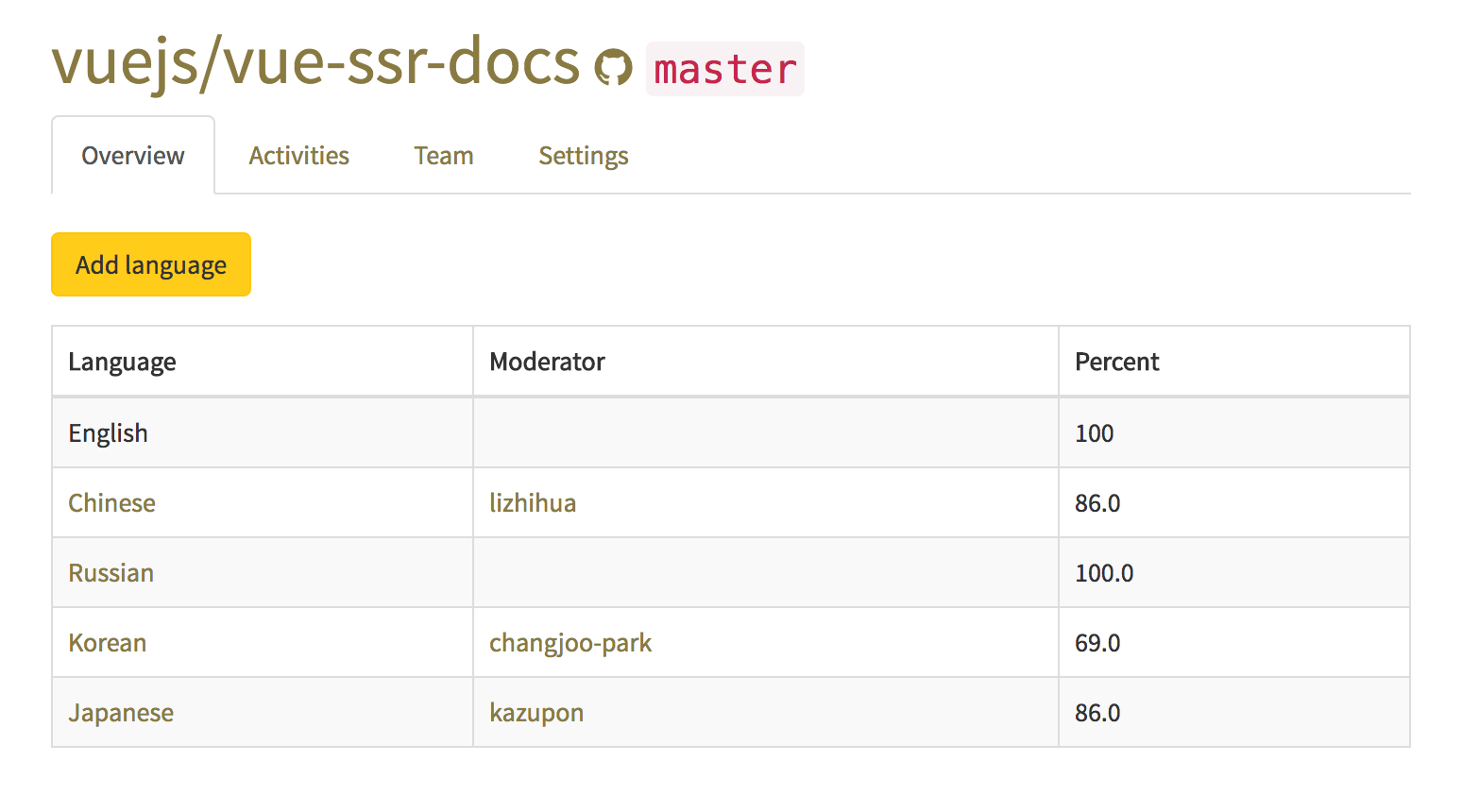
A repository page lists its active languages, the moderator of each, and how much of the repository is already translated into each one. Languages not listed can be added with Add language.
The list of active languages
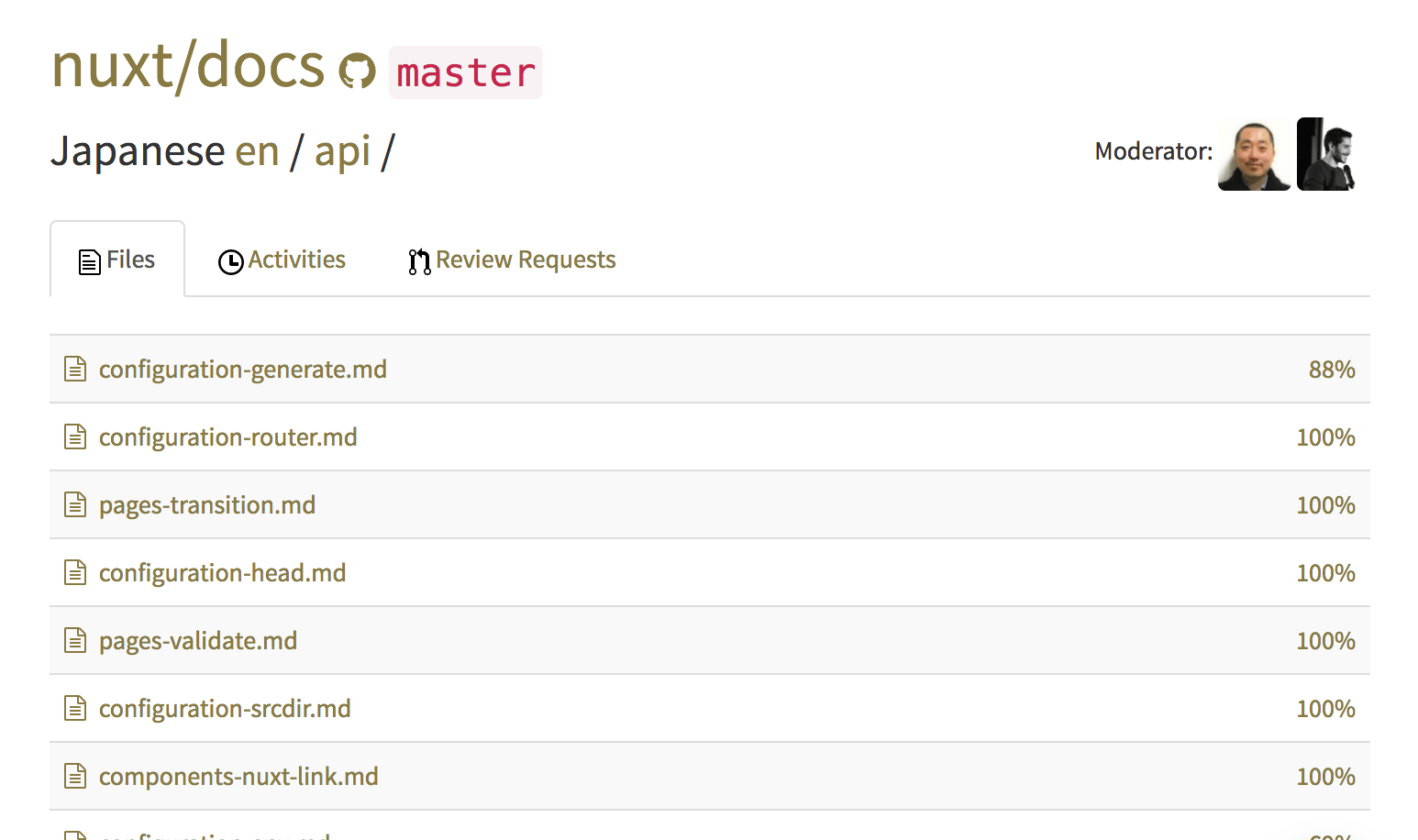
Within a language, the file browser shows the same completion figure per file, which is the practical way to find files that still need work.
The file browser

The editor

Selecting a segment on the translation side opens it for editing. Submitting it links that segment to its source counterpart and counts it toward the file’s completion.
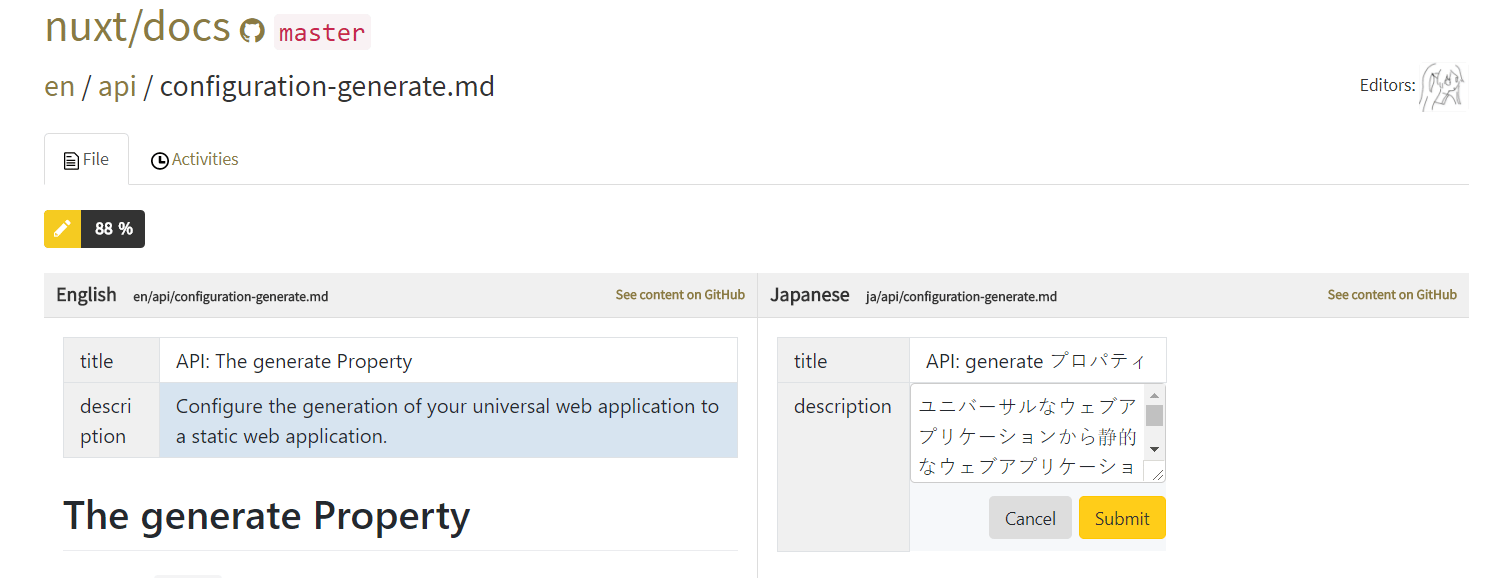
Submitting a translated segment
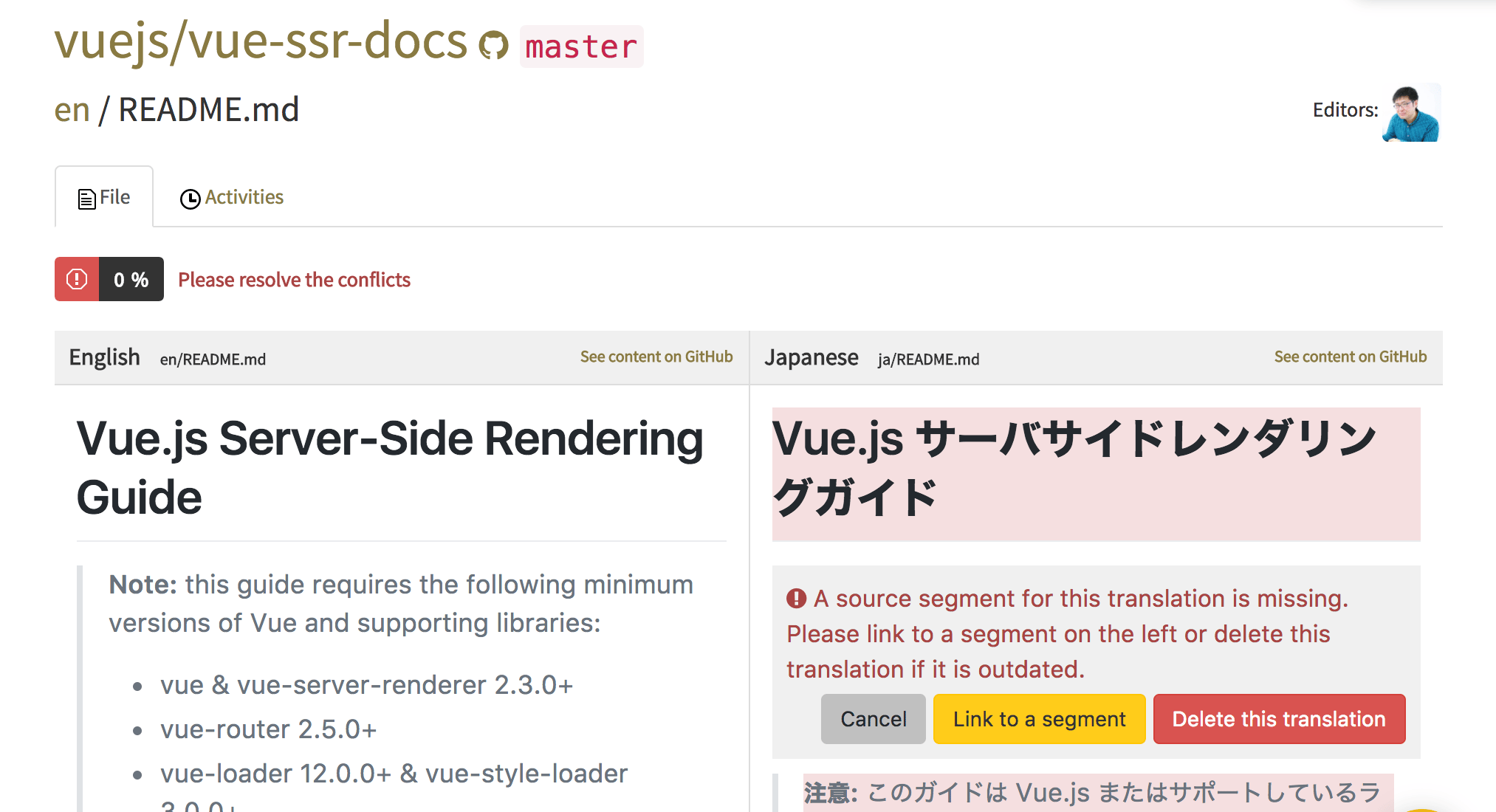
Segments highlighted in red are conflicts — translation segments GitLocalize could not match to a source segment. They have to be linked or deleted before the rest of the file can be worked on.
A conflicting segment highlighted in red

Submitting

A translated file is not sent to the repository directly. It goes to a Language Moderator as a review request, and reaches GitHub as a pull request once approved — see Reviews and pull requests.