

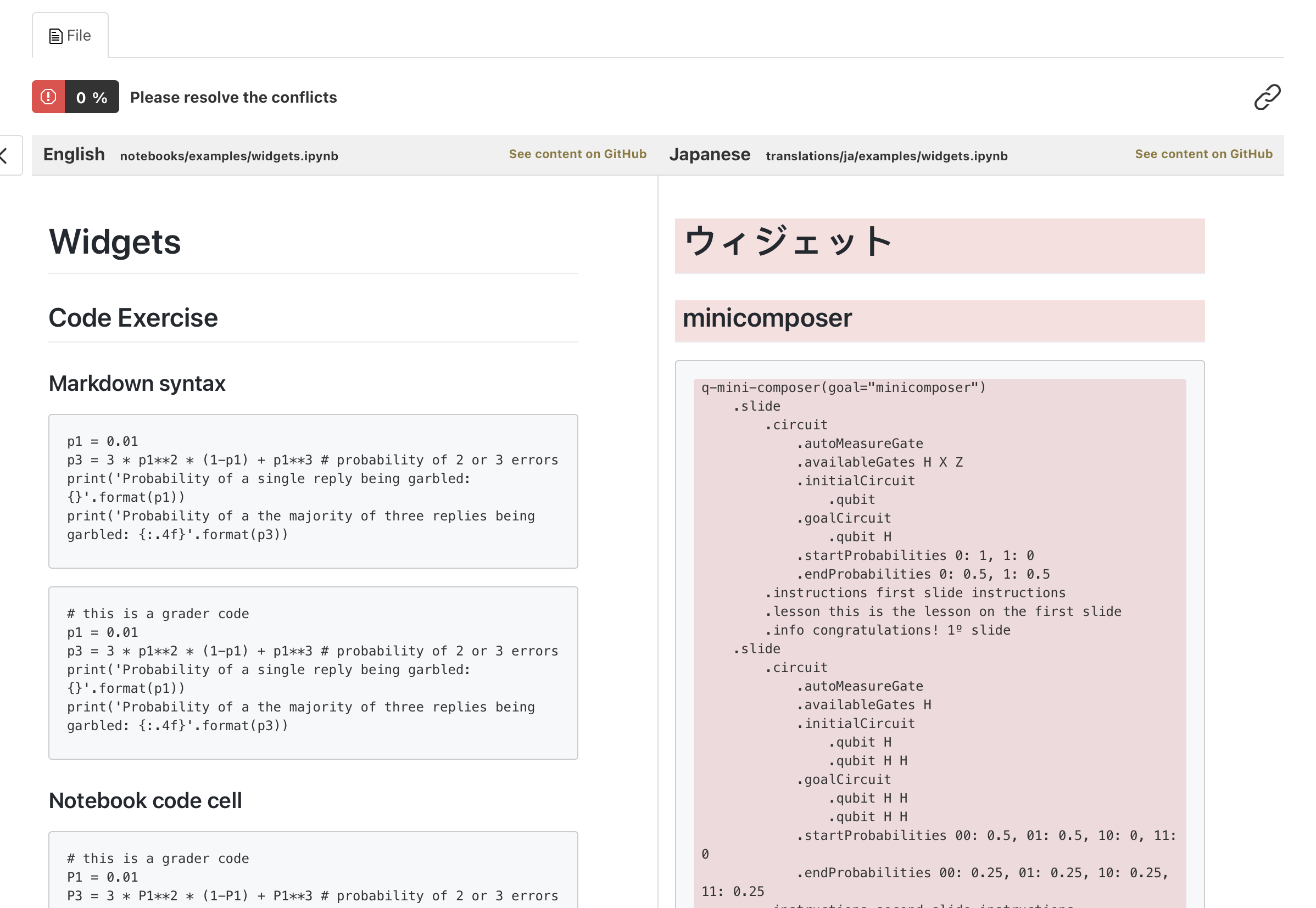
A conflict is a translation segment GitLocalize could not match to a segment in the source file. Conflicts are highlighted in red, and any file containing one is marked Conflicting.
Conflicting segments in the editor
Conflicts arise on import. When a repository is synced, GitLocalize parses existing translation files alongside the source files and attempts to link each translation segment to the source segment it translates. Segments left unlinked become conflicts.

Why matching fails

A conflict means the pairing is uncertain — not that the translation is wrong. Resolving one is a matter of telling GitLocalize which source segment it belongs to, or removing it if it is obsolete.

Resolving a conflict

1

Select the conflicting segment

Click a red segment in the translation pane.
2

Press Link to a Segment

The source pane becomes selectable.
3

Choose the source segment

Select the segment in the source pane that this translation corresponds to.
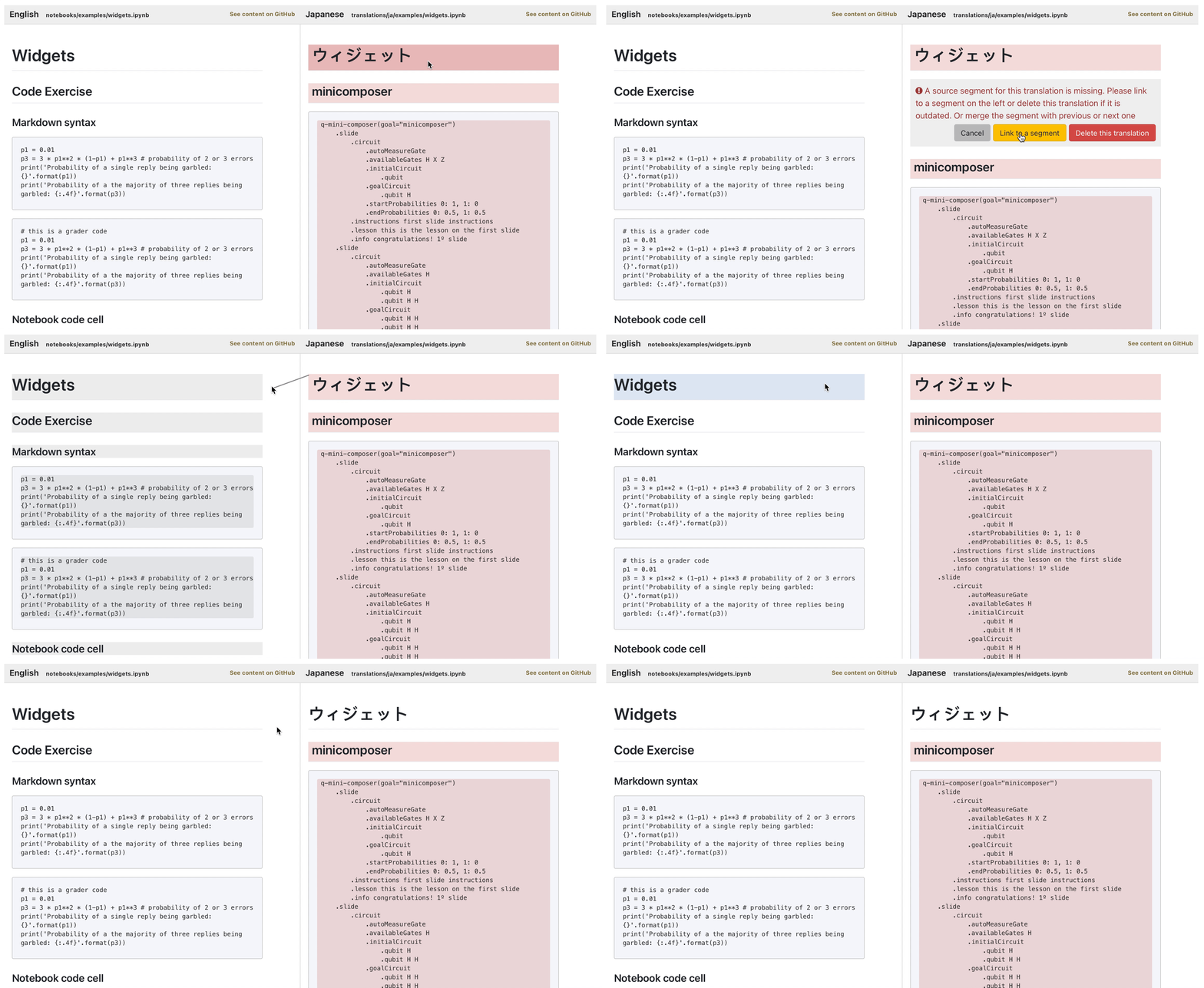
Linking a conflicting segment to its source segment
Verify the translation is current before linking it — linking an outdated translation marks that segment as done and hides it from everyone who might otherwise have fixed it. Obsolete segments should be removed with Delete this translation instead. A file becomes translatable again once every conflict in it has been linked or deleted.